
ℹ️ Audits is an upgraded feature available for Business and Enterprise Customers.
In this article:
Managing Smart Audit Rules
Smart Audit Rules automatically schedule and send recurring Audits based on your chosen timing, locations, users, and tool criteria, helping you continuously verify Item locations and keep records accurate without manual follow-up.
First, ensure Audits are turned on in the Settings menu.
Next, click on the Audits menu, then on Smart Audit Rules.
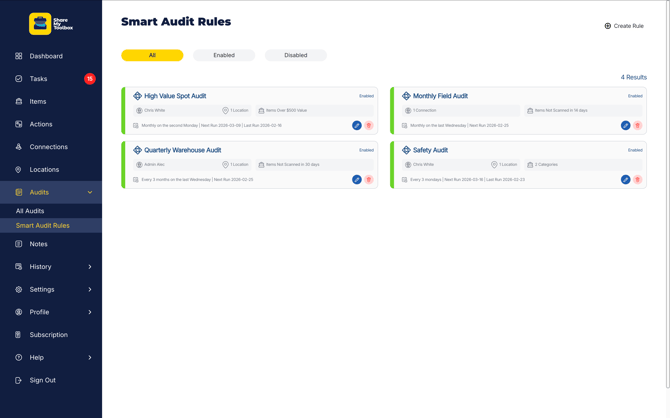
Here you will see rules that are created in the All tab. You can toggle between Enabled and Disabled tabs to filter your rules by status.
Creating Smart Audit Rules
To create a new Smart Audit Rule, simply click Create Rule.
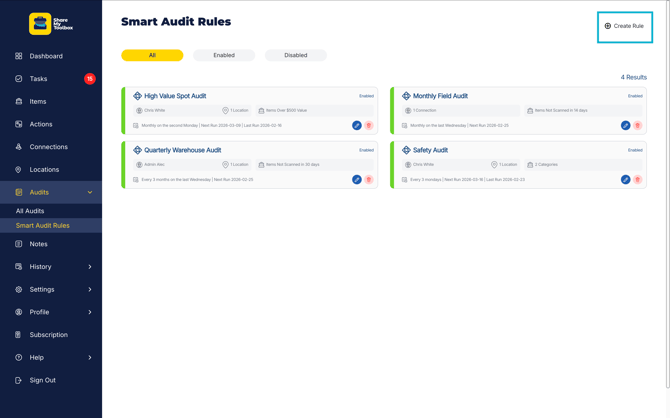
Smart Audit rules have three main sections:
- Main Details: The Rule Name, By Connection or Location
- Date Details: When the rule should start, how many days you will give to complete each generated Audit, how often the rule should run, and how many days you will give to have each one completed.
- Item Details: What Items should be included in each Audit.
Main Details
The Main Details section defines who the Audits will be sent to and how the rule is identified.
Rule Name
Enter a clear, descriptive name so Admins can easily recognize the purpose of the rule.
Tip:
Include the frequency and target group
Examples:
-
“Monthly Field Audit – Crews”
-
“Quarterly Warehouse Check”
-
“High-Value Tools Audit”
Audit Type
Do you want to audit by Location or by Connection?
Choose how the system determines who receives the audit.
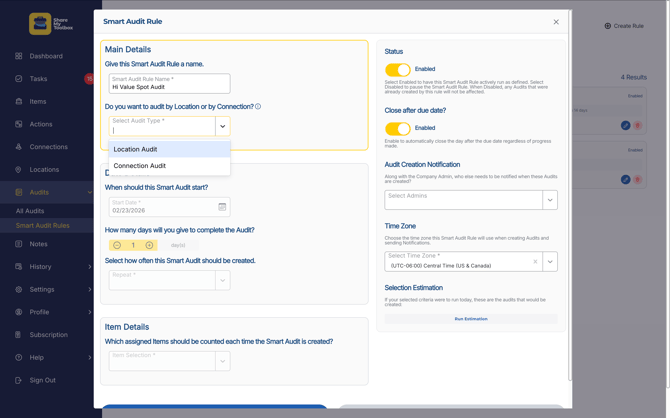
Connection Audit
Send Audits directly to specific people (Connections).
Use this when responsibility follows the person holding the tools.
Best for:
-
Field employees
-
Foremen or supervisors
-
Individual accountability workflows
Each selected Connection will receive their own Audit containing the Items assigned to them to Audit.
Location Audit
Send Audits based on where Items are assigned.
Use this when responsibility follows a place instead of a person.
Best for:
-
Warehouses
-
Trucks or trailers
-
Job sites
-
Storage areas
The audit will include Items currently assigned to that location based on the other rules you define.
When you select By Location, you will further define which Locations you want to include as well as which Connection should count the assigned Items.
How to Choose
-
Choose Connection Audit if you want people to confirm what they personally have.
-
Choose Location Audit if you want to verify inventory in a specific place.
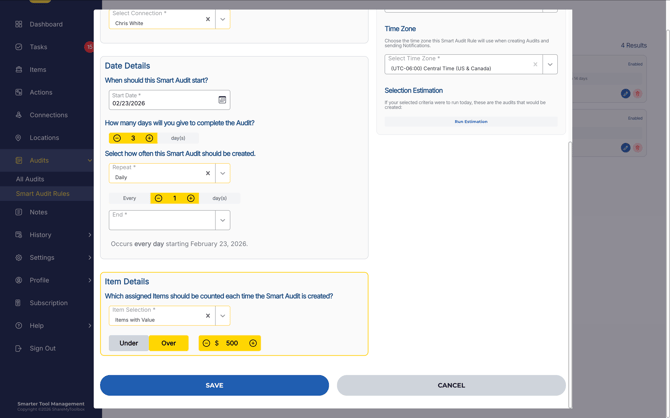
Date Details
The Date Details section controls when Audits are created and how long users have to complete them.
This determines the schedule and timing of every Audit generated by the rule.
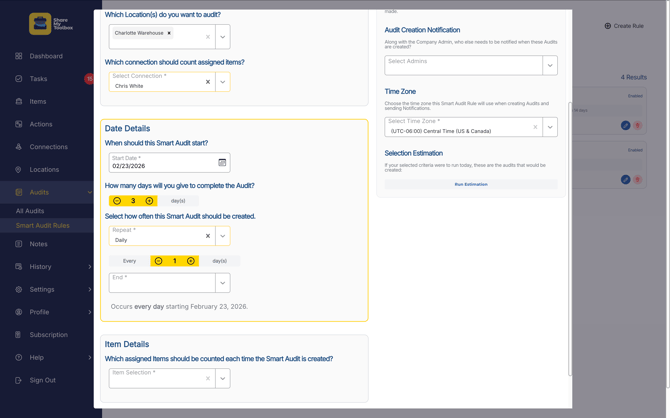
Start Date
When should this Smart Audit start?
Select the date the rule should begin running.
The system will not generate any Audits from this rule before this date. After the start date, audits will automatically follow the schedule you define.
Days to Complete
How many days will you give to complete the Audit?
Choose how many days users have to finish each Audit after it is sent.
This sets the Audit Due Date and helps create urgency and accountability.
Example
If an Audit is sent on the 1st and the completion window is 3 days, it will be due on the 3th.
Repeat Frequency
Select how often this Smart Audit should be created.
Depending on your needs, you can create a rhythm such as:
- Daily (every X days)
- Weekly (every X weeks on X day of the week)
- Monthly (every X months on X day of the month, or X week of the month on X day of the week)
- Yearly (every X month name, on X day of the month, or X week of the month on X day of the week)
Note: End dates can be specified for each type.
This allows you to match Audits to your company’s workflow and level of control.
Why This Matters
Shorter completion windows increase accountability and faster cleanup.
Longer schedules reduce interruption but still maintain accuracy.
Use this section to balance operational convenience with inventory confidence.
Item Details
Which assigned Items should be counted each time the Smart Audit is created?
The Item Details section determines which items will be included each time the Smart Audit Rule generates an Audit.
Instead of auditing everything every time, you can target only the items that matter, making Audits faster for users and more useful for managers.
All Assigned Items
Choose to include all Items that are assigned to your Main Details selection (Connection or Location).
Items Not Scanned/ Audited
This pulls Items that have not been either scanned or Audited in the past X days.
Items Tagged with Categories
Choose this option to select one or more categories to narrow your Audit criteria.
Items with Value
With this selection, you can choose to only include Items that are Under or Over a certain value.
Status
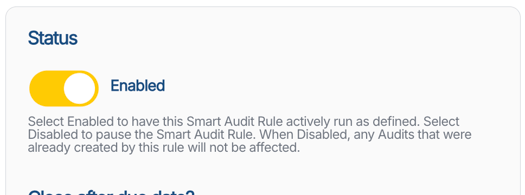
You can Enable or Disable this rule at any time.
Close After Due Date
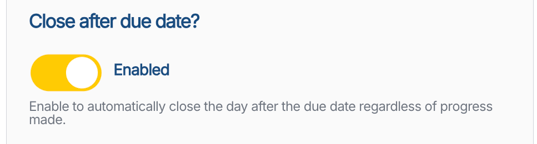
Enable to automatically close the Audit the day after the due date regardless of progress made.
Due Date is determined by the selection:
"How many days will you give to complete the Audit?"
Audit Creation Notification
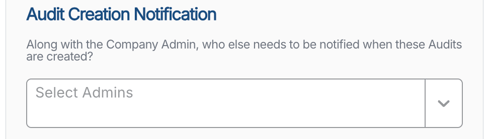
Along with the Company Admin, who else needs to be notified when these Audits are created? Select Admins here.
Time Zone
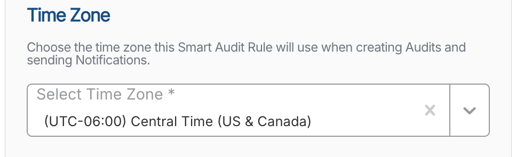
Choose the time zone this Smart Audit Rule will use when creating Audits and sending Notifications.
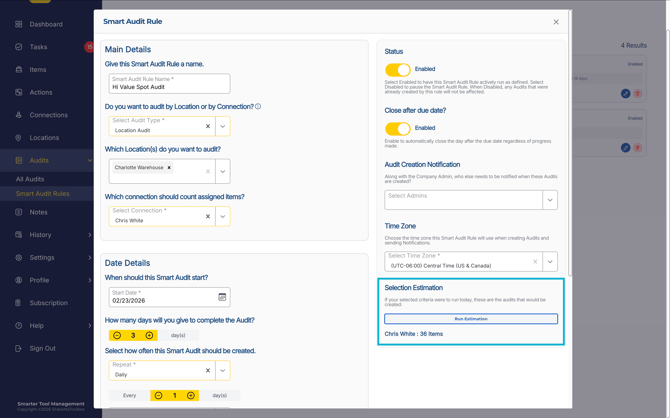
Selection Estimation
Once you have all of your Main Details, Date Details, and Item Details selected, you can click on the Run Estimation button to verify that your selection would produce results if it were run in this moment. This is helpful just to ensure your selection contains the approximate result you were expecting.
Edit Smart Audit Rules
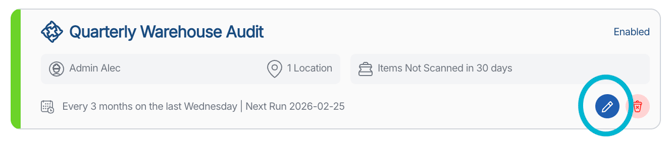
To Edit a rule, simply click on the card or on the Edit icon. Make your changes and click Save to change the parameters of the Smart Audit Rule.
Delete Smart Audit Rules
To Delete a rule, click the Trash Can icon on the Smart Audit Rule card. This cannot be undone and no future Audits will be generated from this rule. Note, this does not impact Audits that were previously created from the rule.
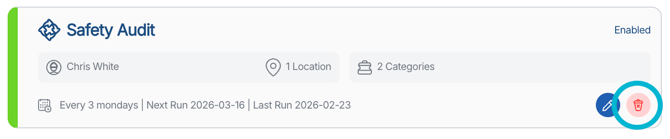
Caution: Deleting a Smart Audit Rule cannot be undone.
Tip: You can alway disable a rule instead of deleting.